


Tired following up on DL application status with your RTO agent or with your local driving school? Not sure on how to get exact information from the RTO?
Checking your Driving Licence (DL) application status online is quick, free, and spares you endless trips to the RTO. Use official government portals or apps – no middlemen needed. The main options are the Parivahan Sewa website, the Sarathi Parivahan portal, or the mParivahan mobile app. You’ll need basic details like your application number, date of birth, and sometimes a mobile OTP. Each portal works for all states (select your state from a menu). Some states also mention these links on their transport websites. We’ll walk through each method step by step, show sample screenshots, cover state variations, troubleshoot common issues, and even include a fun flowchart of the process. By the end, you’ll have a clear checklist and know exactly how to get the latest updates on your licence status.
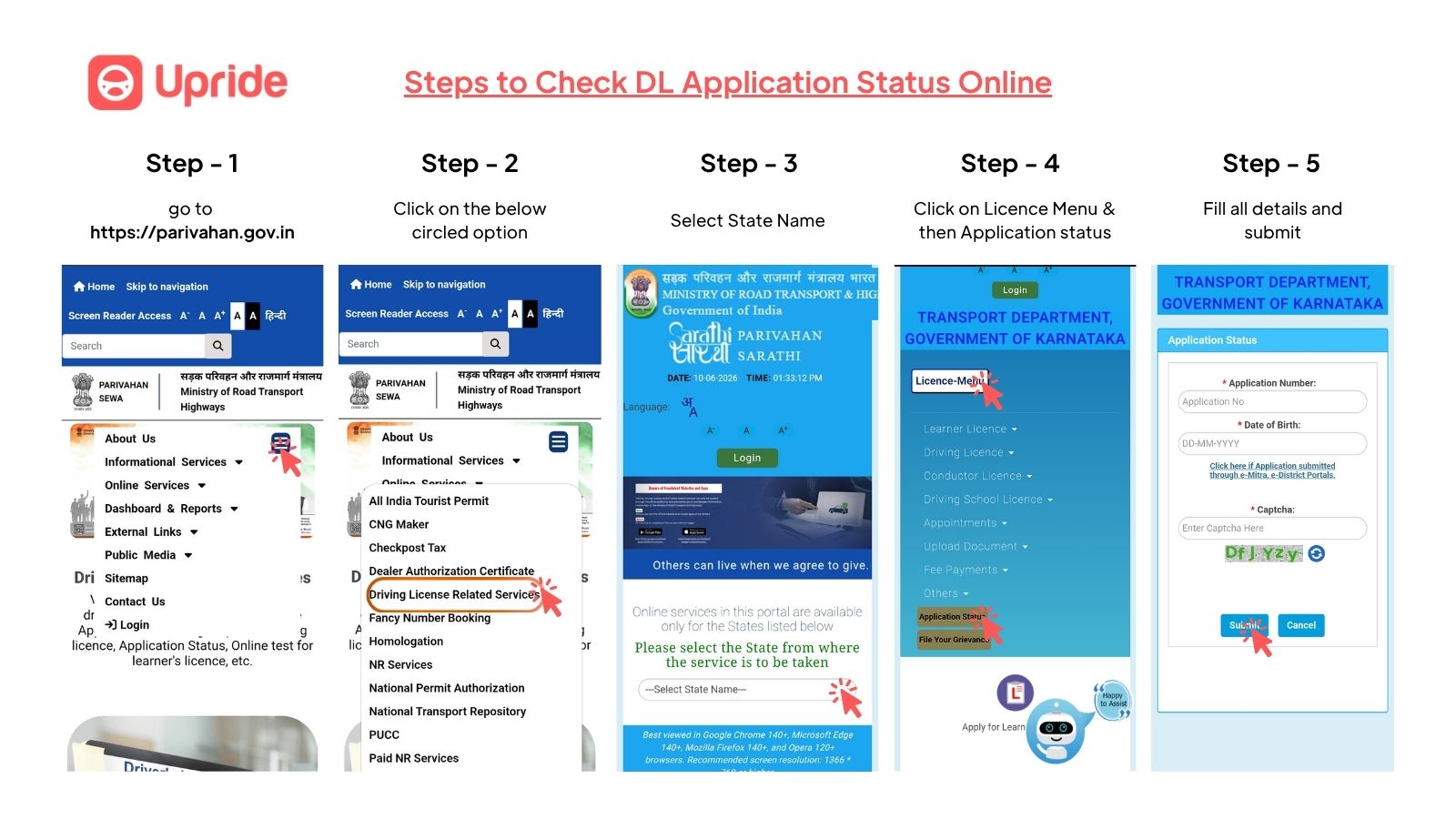
1. Online Methods for Checking DL Status
India’s Ministry of Road Transport & Highways (MoRTH) provides official online services. There are two main portals and a mobile app:
Parivahan Sewa Portal (parivahan.gov.in) – A unified gateway for all transport services. Under “Online Services” → Driving Licence Related Services, you can check status.
Sarathi Parivahan Portal (sarathi.parivahan.gov.in) – Dedicated to driver’s licence and learner’s licence services. Select your state and click “Application Status”.
mParivahan App – The official mobile app. After logging in (by mobile number/Aadhaar), you can view your DL details and status under the DL Servicessection.
All methods use the same back-end data; they just have different interfaces. (See Table 1 for a quick comparison.) If unsure, start with Sarathi or Parivahan, then try the app.
Table 1. Online methods to check DL status.
Method (Official) | Required Inputs | Typical Response Time |
|---|---|---|
Parivahan Sewa (Web) | Driving Licence number (or application number), Date of Birth, Captcha | Instant result (same day) |
Sarathi Portal (Web) | Application number (or DL number), Date of Birth, Captcha | Instant result (same day) |
mParivahan Mobile App | Registered mobile number login + OTP, DL number (auto-fetch) | Instant (app updates) |
DigiLocker / State RTO sites | (If DL already issued, can check via DigiLocker after acceptance) | Instant (if linked) |
State Variations: Some states’ transport websites may also link to these portals.
For example:
Delhi – Delhi Transport’s DL page directs users to Sarathi (see [Delhi DL page][31]).
Karnataka – The Karnataka RTO (Sakala) dashboard links to Sarathi services (see [Karnataka Sakala dashboard][24]).
Tamil Nadu – The TN Transport site links to Sarathi (see [TN Transport Tamil page][35]).
Telangana – Telangana’s transport site simply explains DL procedure; it relies on the central Sarathi system (no separate status page).
West Bengal – West Bengal’s transport site links to Sarathi via a “Dashboard for Driving License” (see [WB Learner License page][74]).
Kerala, Maharashtra, Uttar Pradesh, etc. – These states also use the common Parivahan/Sarathi portals, and do not have separate online systems.
In general, every Indian state is listed on Sarathi’s state-selection menu, so pick your state there. (If you have doubts, the mobile app or parivahan site is usually easiest.)
2. Step-by-Step: Parivahan Portal (parivahan.gov.in)
Visit Parivahan Sewa: Go to parivahan.gov.in and choose “Online Services” > “Driving Licence Related Services” (look for DL services).
Select your State: Click the state where you applied for the licence (India’s states are listed in a dropdown).
Find Application Status: On the state RTO page, click “Application Status” (or “Know Your DL Status”). This may open the central Sarathi interface.
Enter Details: Provide your Application Number or Driving Licence Number (in the format DL-XX-YYYYNNNNNN where XX = state code, YYYY = year of issue) and Date of Birth. Type the captcha or verification code shown.
Submit: Click Submit / Check Status. The portal will display your current status (“Approved”, “Dispatched”, “Pending”, etc.) on the screen.
If approved and dispatched, the portal often shows the speedpost tracking ID for your licence. You can use that on the India Post website to track delivery. (In some states you may need to contact the RTO for the tracking number if it’s not shown.)
No login or password is needed for status checks – just the details above.
Tips:
Format matters: The licence number may need the state code and year. For example, “DL-1420210012345” or “DL14 20210012345”.
Mobile number: Make sure your current mobile number is updated in the system for OTPs and SMS alerts. You can update your mobile via the portal (Sarathi/Vahan services) if needed.
Antivirus: Only use official sites. The Parivahan portal itself warns to avoid fraud sites. Always see “parivahan.gov.in” or use the MoRTH app.
Image: Applicant filling out license application forms (stock image) – Have your application number and DOB ready, since you’ll need them for the status check.
3. Step-by-Step: Sarathi Parivahan Portal (sarathi.parivahan.gov.in)
Go to Sarathi Portal: Visit sarathi.parivahan.gov.in.
Select State: On the homepage, choose your state from the dropdown and press Submit.
Choose “Services on Driving License”: In the list of DL services, click “Application Status” or similar (may be under “Apply Online” menu).
Enter Details: Input your Application Number and Date of Birth. (If you have a Permanent License number already, some states allow entering that instead.) Fill the Captcha shown.
Check Status: Submit to view the status. You should see details such as “Print Card Series” or “Dispatched via Speed Post” etc.
The Sarathi portal steps are essentially the same as Parivahan, since Parivahan will often redirect you here. In fact, Parivahan’s DL status link and Sarathi’s “Application Status” both pull from the National Register of DLs (Sarathi).
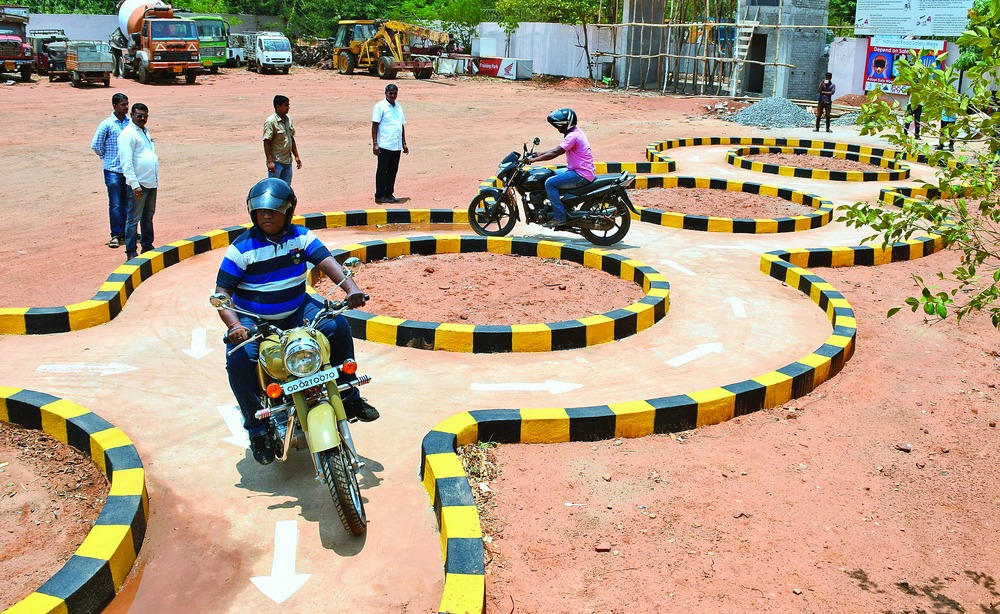
Image: Driving test at an RTO – Once you pass your driving test, your application moves to the “Approved”/“Dispatch” stage in the online portal. Check back online a few days after passing.
4. Step-by-Step: mParivahan Mobile App
Install the App: Get the official mParivahan app (available on Android and iOS).
Register / Login: Open the app, register your mobile number, and verify via OTP.
Add Your DL: In the wallet section, tap “Driving License” and either scan your physical DL’s QR code (if it has one) or manually enter your DL number.
View Status: The app will show your licence details and the current status. It may display stages like “DL Printed”, “Dispatched”, or show Dispatch Tracking ID once available.
Alerts: The app sends push/SMS alerts as status changes.
The mParivahan app is linked to the same data. In practice, once you’ve added your DL to your profile, you can simply open the app anytime to see if anything changed. No separate search or captcha is needed after initial login.
State-Wise Notes & Official Links
Some major states have transport sites that mirror or explain these processes:
Maharashtra: Use the Parivahan/Sarathi portals for all DL services. (The Maharashtra transport site itself does not have a separate tracker; it points to the central portal.)
Delhi: Delhi’s Transport Department provides DL services through Sarathi. See the Delhi DL page which links to Sarathi Parivahan.
Karnataka: The Karnataka Sakala online portal lists Sarathi services for DL, confirming a 15-day SLA. It simply redirects users to the national portal.
Tamil Nadu: The Tamil Nadu transport site links to Parivahan/Sarathi (via the “Sarathi 4” link).
Uttar Pradesh: UP also uses the central portals. Check the state selection on Sarathi and choose “UP”. The state RTOs do not have a separate tracking page.
West Bengal: The WB government’s site has a “Dashboard for Driving License” link that goes to Sarathi. (They name it “Dashboard” but it’s just the status check form.)
Kerala: Kerala’s motor vehicle department uses the same Parivahan system – no special Kerala-only site.
Telangana: Telangana’s site describes getting a DL, but status checks are via Parivahan/Sarathi as well. Telangana also offers certain smart-card services via its T-App Folio app for renewals/duplicates.
When in doubt, always start at the official Parivahan or Sarathi site and select your state; they cover every state/UT. The examples above are for major states; smaller states (like Goa, Punjab, etc.) work the same way.
Common Issues & Troubleshooting
Page Not Found/Bad Gateway: Official sites sometimes face downtime or updates. If you see errors, try again after a short break. Alternatively, switch to the mParivahan app.
“No records found” Error: Double-check your application number format, DOB, and state selection. Remember to include the state code and year (e.g. “DL-04-2023NNNNNN” for Maharashtra in 2023). Some portals also accept just the application number (no “DL-” prefix).
Captcha Issues: The web form uses a case-sensitive captcha. If it repeatedly fails, reload the page or try the app/DigiLocker as an alternative.
Not Updated: Status updates may take 1–3 days after each milestone (e.g. test passed, printing done). If it’s been longer (say 2 weeks after your test) and status still says “Pending,” call the RTO.
Wrong Mobile/Email: If you didn’t get an OTP or SMS, ensure your current mobile number was updated in the application. You can update mobile via the Sarathi “Update Mobile Number” service or by visiting the RTO in person.
Multiple Applications: If you applied more than once or changed RTO, make sure you’re checking the correct application number. Your application receipt has the exact number.
If none of the above helps, you can contact officials: The Parivahan helpline is 0120-4925505 (6 AM–12 midnight). For DL-specific queries, call 0120-2459169 or email helpdesk-sarathi@gov.in. You may also visit or call your local RTO/DTO office (their contact info is on the state transport website). Mention your application number and details for faster service.
Timeline & Fees
After you pass the driving test, most RTOs take about 2–4 weeks to print and mail the licence. The portal may show messages like “Under Process” → “Approval” → “Dispatched” in that order. Your status might show “DL Delivered” or similar when it’s posted. Use the speedpost ID (if given) to track it, or check back on the portal every few days.
Fees: There is no fee for checking status. The fees apply when you originally applied for the licence. For reference, the government fees (approx.) are: Learner’s Licence ₹150, Licence Test Fee ₹300, DL Issuance ₹200. (Check [Parivahan’s latest fee schedule][18] for exact rates.)
Privacy & Security Tips
Only use official platforms: the Parivahan/Sarathi websites or the “mParivahan” app by the government. Do not use random third-party sites or apps claiming to check license status – they could be scams.
The government advises: Always verify the website domain (“parivahan.gov.in” or “sarathi.parivahan.gov.in”) and app authenticity. Beware of look-alikes or ads on search engines.
Your personal data (DOB, application number) is required, but never share your Aadhar/PAN or payment info on these forms. The status check itself is a public service that doesn’t ask for such sensitive data.
Keep your registered mobile number active and private. The system may send an OTP or status SMS; don’t share OTPs with anyone.
The digital copy of your DL on mParivahan or DigiLocker is valid, but still carry a physical or print copy when driving, as per regional enforcement practices.
Simple Checklist Before You Start
Gather info: Application number or DL number and your Date of Birth.
Valid DOB proof: Keep your Aadhaar/PAN handy in case the portal requires later verification.
Update mobile: Make sure your mobile is the one registered in the application.
Use official site/app: Bookmark parivahan.gov.in and/or install mParivahan.
State selector: If using Sarathi/Parivahan, double-check you’ve chosen the right state (the one where you applied).
Patience: After applying or passing the test, wait a few days before checking status; immediate results may not appear.